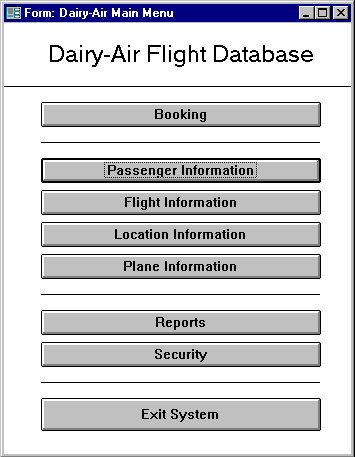
The following is an overview of the UDDERS' Main Menu. Upon starting up the system the following menu is displayed. The user simply has to click the button for the appropriate subsystem to access it. Users without security access for a subsystem will receive a message infoming them of this and be left in the Main Menu.
The following is an overview of UDDERS' facilities for changing or viewing ticket information. From the Main Menu, a user would click on the 'Booking' button or on the 'Passenger Information' button.
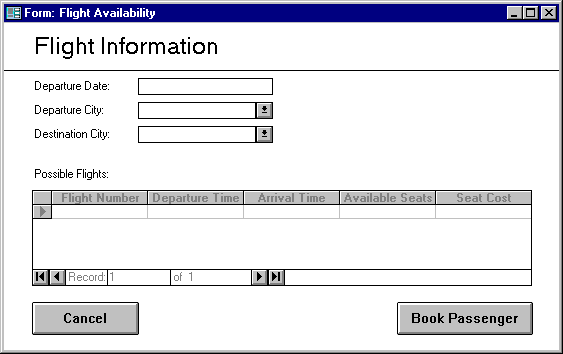
The Passenger Booking form will be optimized so that a ticket agent may easily process a reservation placed over the phone or in person by a passenger. The first button on the Main Menu labelled 'Booking' will lead to the 'Flight Availability' window (below).
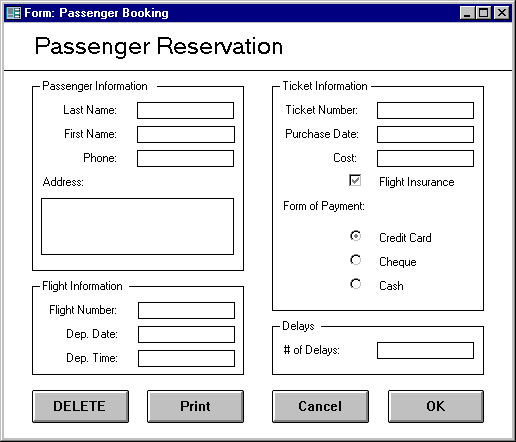
The 'Passenger Booking' screen is displayed for the remainder of the booking process. The
following fields on this screen will already have been filled in for the agent, reflecting the choice
made on the 'Flight Availability' form:
The booking process may be cancelled at any time by pressing the 'Cancel' button, which will bring the agent back to the Main Menu screen.
To list information on a specific passenger, the booking agent will select 'Passenger Information' from the Main Menu. When the 'Passenger Information' window appears (although not shown here, the 'Passenger Information' window is the same as the 'Passenger Booking' window with a few extra options), it will contain the information for the first passenger in the database (sorted in ascending order by ticket number). If this is not the passenger desired, the agent can perform a search by pressing the 'Search' button, or step through the passenger database using the navigation button. The customer booking will then appear on the screen. To get a printed copy the agent simply needs to press the 'Print' button.
Cancelling a passenger booking is done by locating the desired passenger booking (see 'Listing Passenger Information'). Once the desired booking is displayed, the 'Delete Booking' button can be pressed, provided the passenger bought Flight Insurance. The system will ask the agent for confirmation (at which point the 'Ok' button can be pressed to delete the passenger booking or the 'Cancel' button can be pressed to cancel the operation).
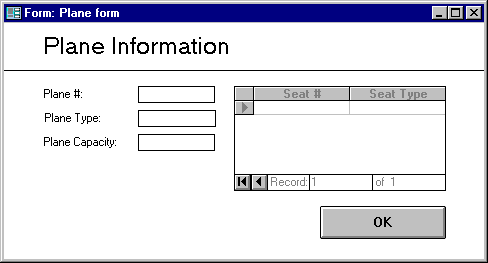
This section of UDDERS will be designed to allow Dairy Air to easily and effectively change information about planes in its fleet. Dairy Air will have the ability to add, delete, or modify planes and their seating configuration(s) via this screen. This form can be accessed from the Main Menu by selecting the 'Plane Information' button. Once the user has access to this form they will be able to add, delete, or modify any planes that Dairy Air owns and/or utilizes.
Planes and seats can be added at any time by Dairy Air personnel, as their fleet size and configuration changes. They will access the plane information window and press the 'Add Plane' or 'Add Seat' button as their needs warrant. A unique plane identifier number will be assigned by the system when a plane is added to the system. This numer will not be modifiable by the user to prevent data integrity breakdown. Seating capacity will be calculated by the system based on information from a separate sub-form. This form will ask for seat number to be filled in and a seat type to be selected from a drop-down list box for each individual seat. This is filled out by the user each time a new plane is added and can be modified at any time as a plane's configuration changes over time. The Plane Type field will be a simple user-entered field. The location field will be manually selected from a drop-down list box of potential cities. When updates are complete, the user will then have the option to save or cancel the changes made and will be returned to the Main Menu.
Planes and seats can be modified at any time by Dairy Air personnel, as configuration changes are made. Users will select the 'Modify Plane' button from the plane information sub menu to access this series of options. The only user-modifiable field for a plane will be location, in the case of an unforseen event or act of God. A seat, however, can have either its number modified or its type modified. When modifications are complete, the user will be returned to the Main Menu.
Planes and seats can be deleted at any time by personnel using UDDERS. To access this set of features, users will select the 'Delete Plane' or 'Delete Seat' button as their needs require. They will then be able to choose the plane and/or seat that they wish to delete, and be prompted for confirmation prior to returning to the Main Menu.
The following is an overview of UDDERS' facilities for changing or viewing location information. From the Main Menu, a user would click on the 'Location Information' button.
Selecting the 'Add' button would activate a sub-form which will accept the system's needed information for location data. The system will obtain the location name and the time offset relative to Calgary of the new location.
Following data entry, the user would be asked whether the information is correct. Upon verification, the new information will be saved.
Selecting the 'Modify' button will display the location that the user wishes to modify. The user will have the ability to modify the location name and/or its time offset relative to Calgary. These would be useful in cases where the location name was incorrectly entered or a change in the offset time is necessary due to adoption or lack thereof of Daylight Savings Time, etcetera. Appropriate verification procedures would be implemented here as well.
Selecting the 'Delete' button will prompt the user to confirm the deletion of the location, assuming that all flights to and from that location have been deleted from the database. The location will then be removed from the list that Dairy Air flies to.
The following is an overview of UDDERS' facilities for changing or viewing flight information. From the Main Menu, a user would click on the 'Flight Information' button.
Selecting the 'Add' button would activate a sub-form which will accept the system's needed information for flight data. The system will obtain a uniquely assigned flight number, a departure date and time, and a plane to fly the flight. Departure and arrival locations will be entered into the system also by the user responsible for adding flights. The flight time will be entered in, as will ticket and insurance prices for the flight.
Following data entry, the user would be asked whether the information is correct. Upon verification, the new information will be saved.
Selecting the 'Modify' button will display the flight that the user wishes to modify. The user will have the ability to modify the majority of a flight's attributes. The only items that will not be modifiable will be the flight number, departure location, and arrival location, to maintain data integrity throughout UDDERS. Here, as elsewhere within UDDERS, appropriate verification procedures will be implemented.
Selecting the 'Delete' button will prompt the user to confirm the deletion of the flight from the database, assuming there are no reservations for that flight in the database. The flight will then be removed from the flight listings.
All user interaction in UDDERS is done through the use of interactive windows. When a new window or data entry mode is required push button are available for all necessary tasks. To assist expert users, however, all of the commonly used commands will also be accessible through pull down menus, and through the use of keyboard shortcuts. This will greatly increase the productivity of experienced users, while maintaining an easy to use and learn interface for newcomers to UDDERS.